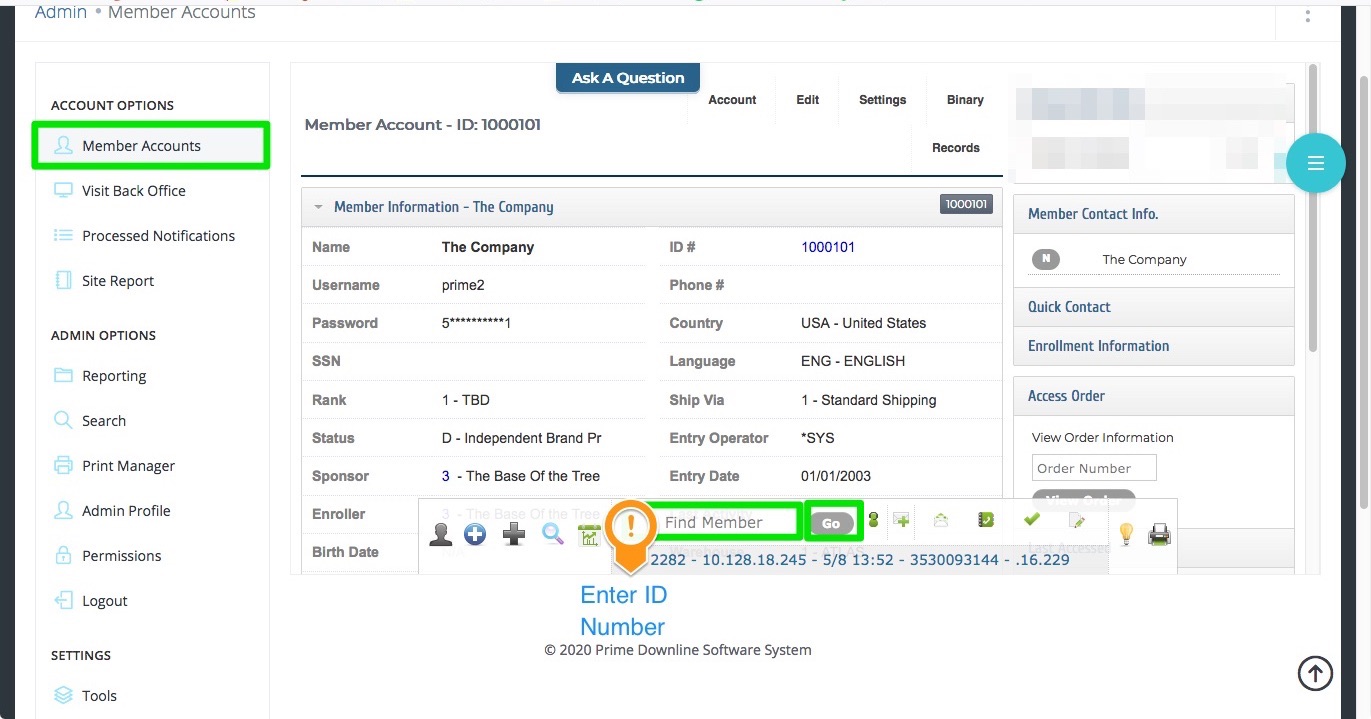
To Cancel an Active Autoship Base Order in Admin, go to Member Accounts and enter the ID Number (or name to search) into the Find Member field in the Dashboard and click Go.
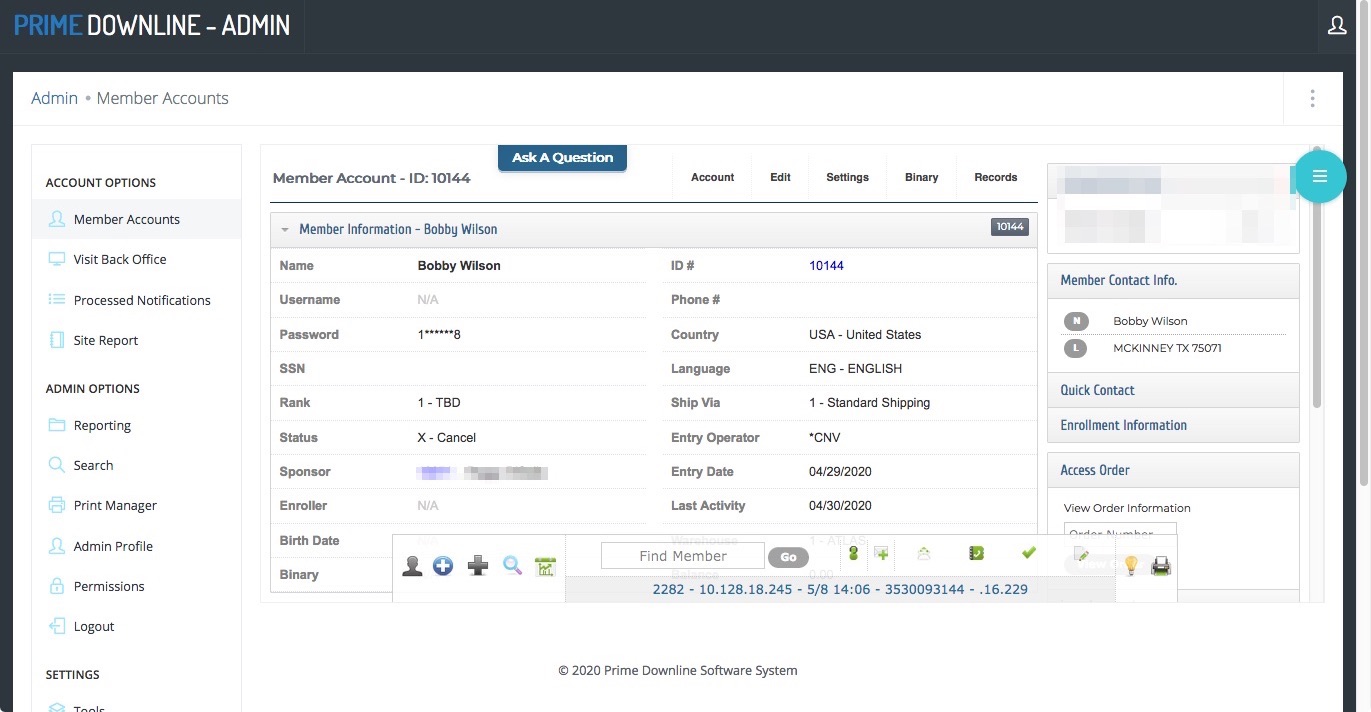
You will be taken to the account.
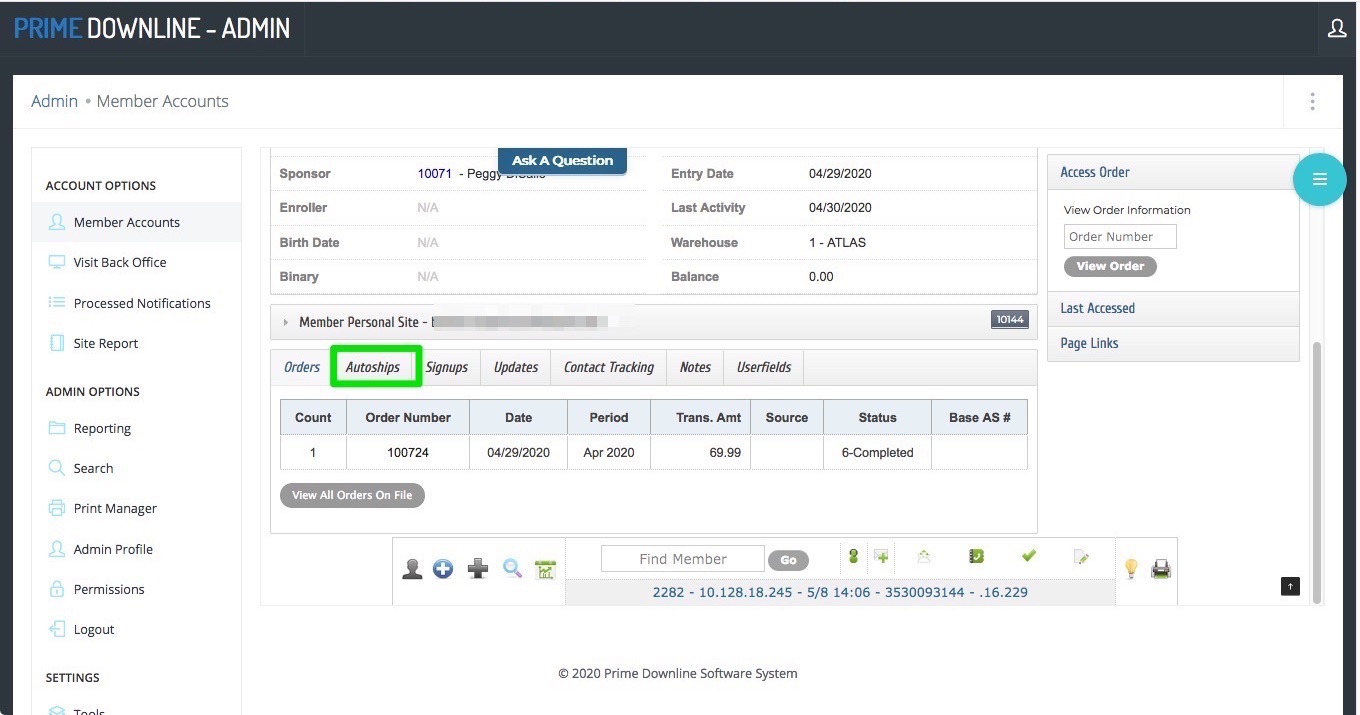
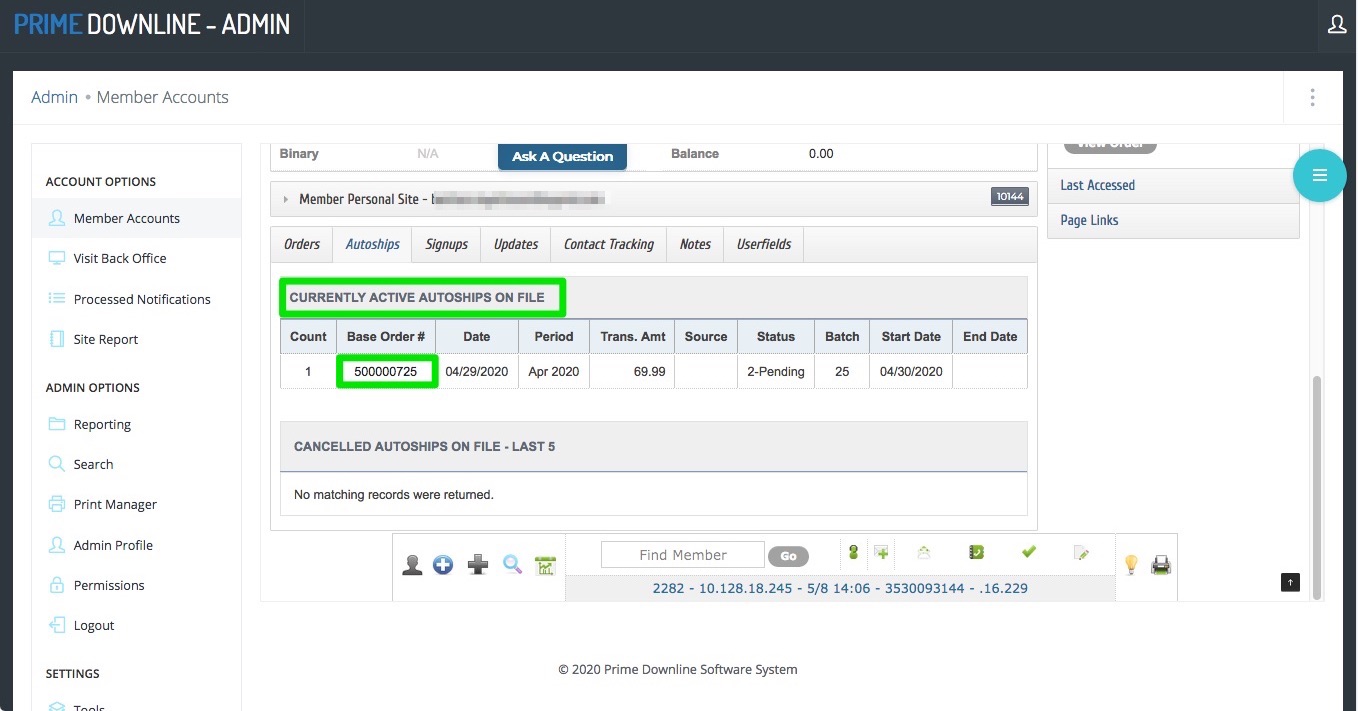
Once in the Account, in the middle of the page, you will click on the Autoship menu tab.
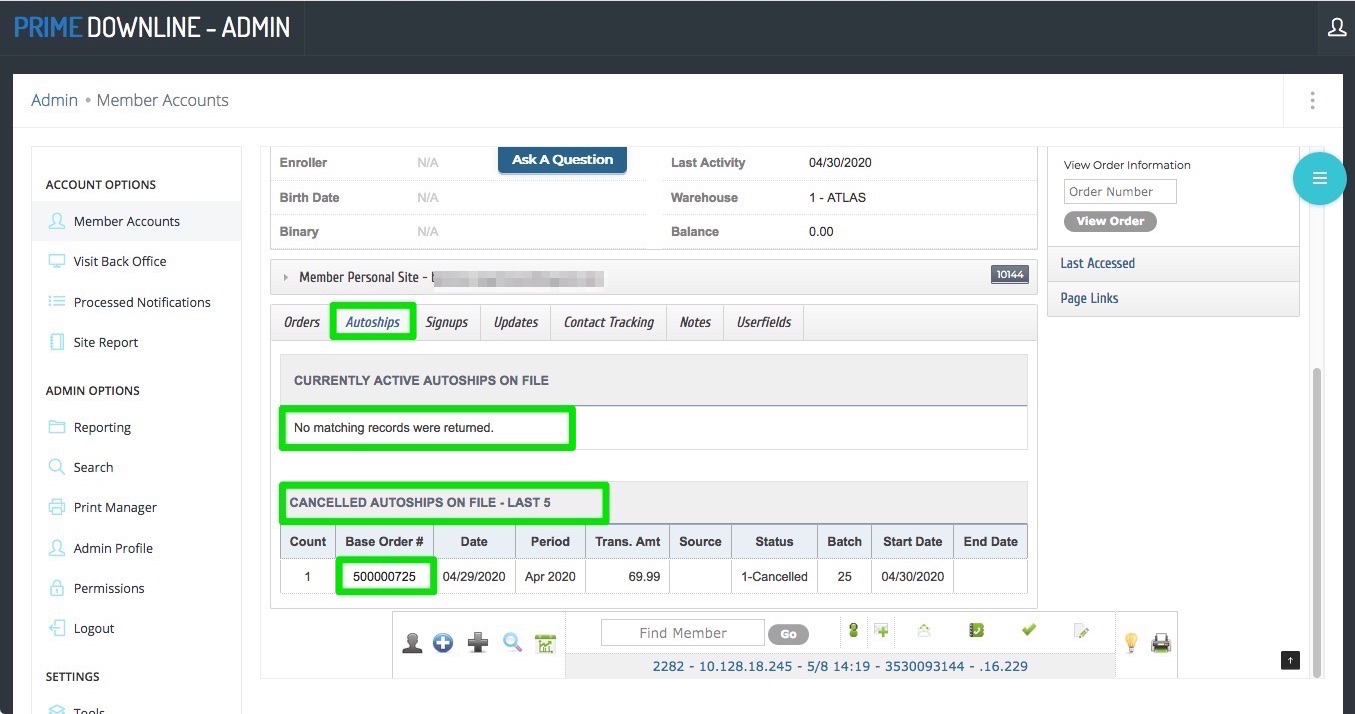
You will be shown the Current Active and Cancelled Autoship Orders for the account.
Under Currently Active, you will click on the Base Order Number that you are wanting to cancel.
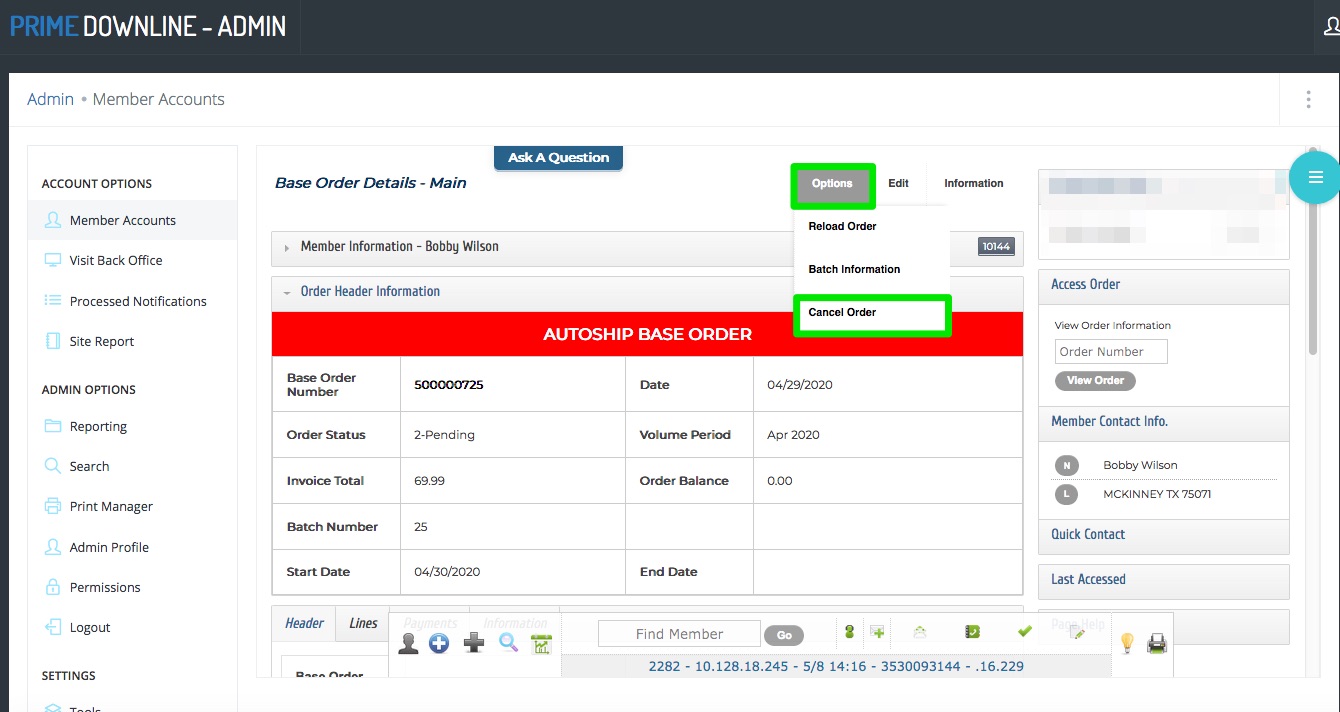
You will be taken to that Autoship Page.
Rollover the Options menu tab and click on Cancel Order.
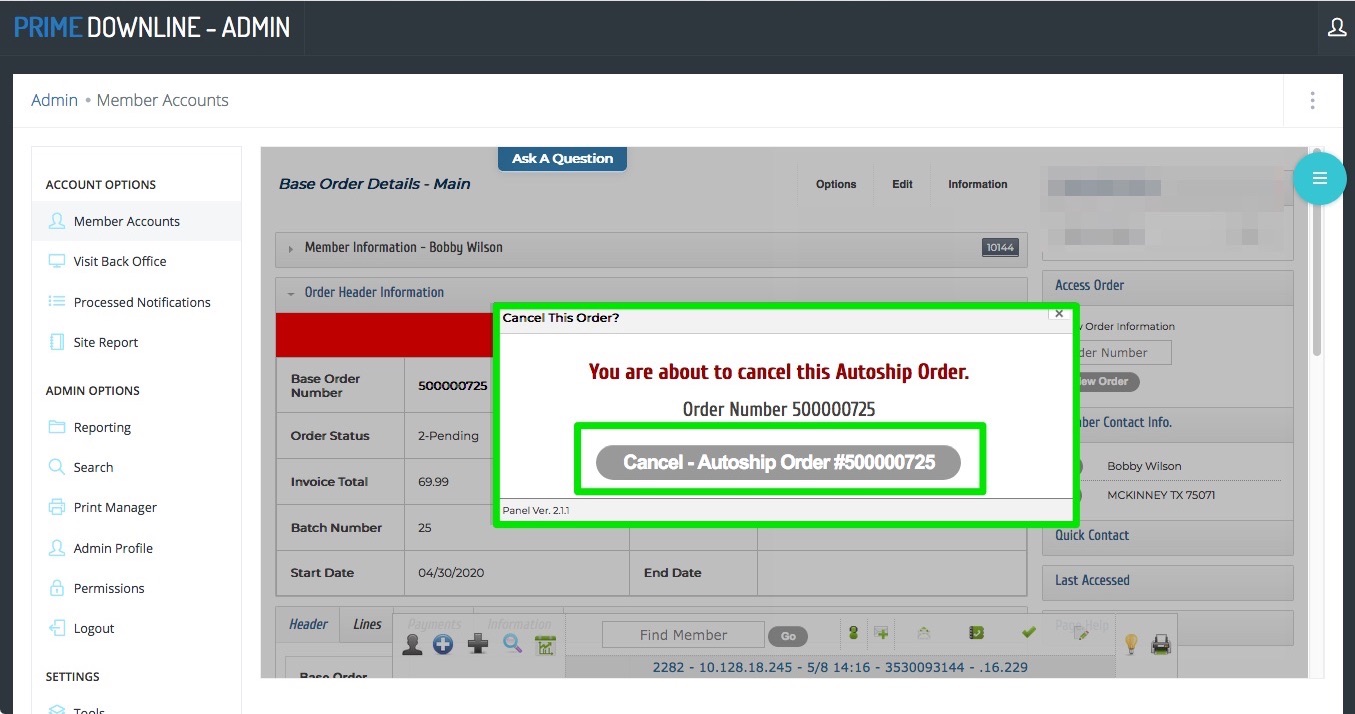
A pop-up window will appear to confirm that you are going to cancel the Base Order. Click Cancel-Autoship Order #.
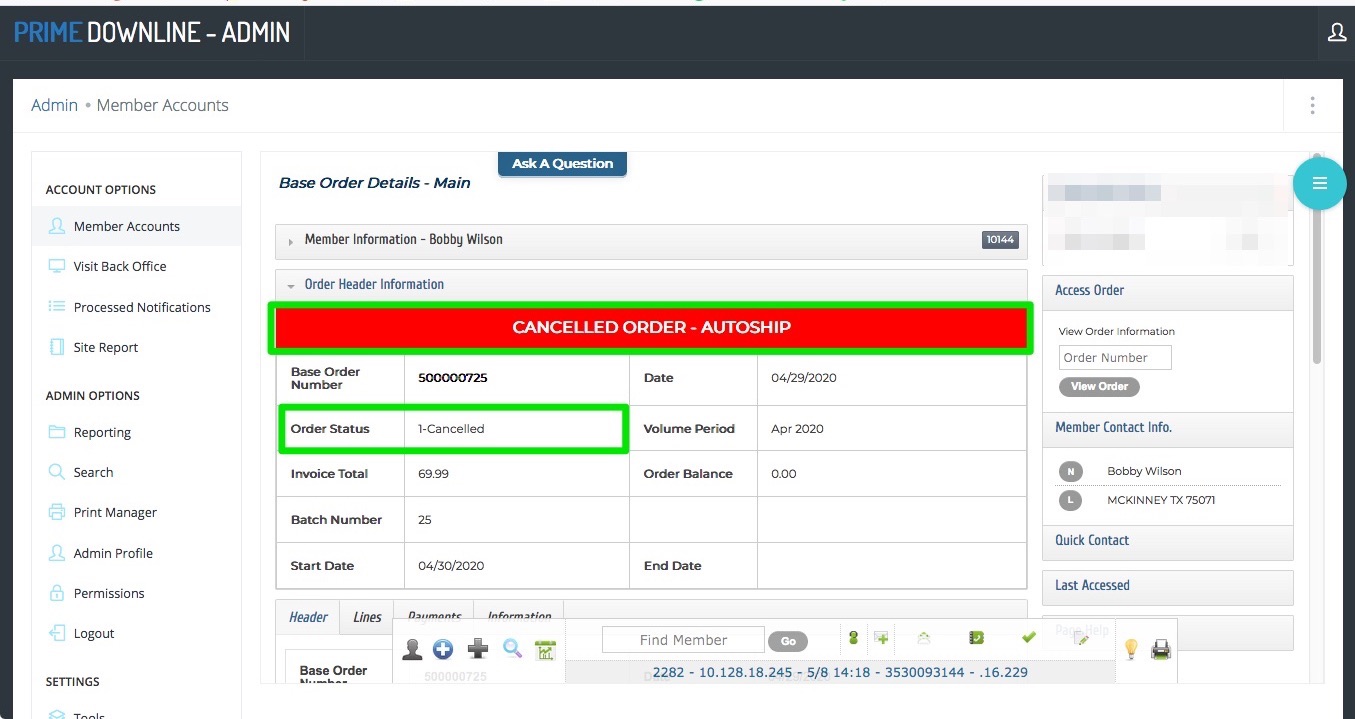
The page will refresh and you should see that the Base Order has been cancelled.
If you were to go back to the Member Accounts Home Page for the member and click on the Autsohip menu tab, you will see that your previously Active Base Order Number appears under the Cancelled Autoships section.